
Create Sign Operation
Use of this endpoint allows the creation of a new operation. A wide range of optional parameters is available in order to support highly specialized use cases. However, not all parameters are typically required, and their quantity may be overwhelming at first. It is recommended to review the examples provided in the /examples folder – in our postman collection –, which cover common use cases that may align with the intended implementation.
To initiate an operation, it is necessary to provide a PDF file—either encoded in Base64 or by specifying the ID of a previously uploaded template. Additionally, optional configuration options and a list of signatories must be included.
Files array
The files array is the main object used to define the operation(s) to be created. In most scenarios, this array will contain a single entry, as only one PDF is to be sent to one or more signers. If multiple file objects are provided, multiple operations will be created. These operations can be chained (see the following table), requiring signers to complete the first operation before proceeding to the next. This structure is referred to as a “chained operation”
To send multiple PDFs and allow signers to review and sign all documents within a single operation using just one signature, refer to the Create Envelope endpoing . This alternative allows users to sign all documents collectively in a single step.
File object
Inside the files array there must be at least one object with this parameters included.
| Parameter | Type | Required | Description |
|---|---|---|---|
| name | string | Yes - if template is not defined | The name of the file that the signers will see |
| base64file | string | Yes - if template is not defined | The content of the PDF file, encoded in base64. Tecalis Signature only admit PDF files to sign, check pdf-utils conversion/to-pdf method if parsing a file to PDF is needed |
| template_id | string | Yes - if base64file is not defined | The PDF file of a previously created template on the Tecalis Signature admin panel – the template ID is available on the URL of the template edit page.The name parameter can also be setted to show another name |
| configure | object | No | The spot where the operation is configured – See the configure section |
| receivers | array of objects | Yes | The signers of the documents, there can be more than one signer – See the receivers section |
Configure object
This object is optional, also all parameters inside it are optional so you can omit it**.** It allows you to configure global options of the operation, but don't forget to take a look to the receivers parameter (next table) for some specific configurations applied per signer that are not possible to set in this object
| Parameter | Type | Required | Default | Description | Constraints |
|---|---|---|---|---|---|
| signature_type |
| No | handwritten | The type of signature tha will apply to that operation:
| |
| workflow_type |
| No | parallel |
| |
| subject | string | No | The subject of the email that will receive the signers | ||
| message | string | No | A custom message for the email body – it will appear into the signature web when the signer opens the operation. | ||
| hashtags | array of strings | No | No need to add the hash (#) at the beginning – Tecalis instead of #Tecalis.The Tecalis Sign admin panel allows filters by hashtags. | ||
| expiration | date / datetime | No | +15 days | The date that the operation expires when not every signer has signed the document. | Date: Y-m-dDatetime: Y-m-d H:i:s It must be UTC+0 |
| signature_color | string | No | black | The color of the signatures. | CSS colors in text – for example red – or hexadecimal – for example #CECECE – are accepted. |
| allow_delegation | boolean | No | false | Allows signers to delegate their signature in another person during the sign process. | |
| allow_validation | boolean | No | false | Allows signers to ask another person to review the operation before they sign. | |
| allow_comments | boolean | No | false | Allows signers to add comments to the sign operation that must be reviewed from the Tecalis Signature Admin Panel. | |
| force_scroll | boolean | No | false | Signers must pass all pages, or scroll down to the bottom, before being allowed to sign (sign button will be disabled). | |
| scheduled_send_datetime | datetime | No | If set, this operation will not be sent to the receivers until the specified datetime. Note: Take into account that a cron reviews each 5 minutes the scheduled operations, so a bit of delay may occur. | Datetime: Y-m-d H:i:sIt must be UTC+0 | |
| attachments | array of objects | No | The files that the signer will receive attached to the operation email. | "name": the name of the attachment."base64content": the content of the file in base64 | |
| observers | array of objects | No | Observers act as validators and must give their approval before the document is sent for signature. | ||
| reminders_days | integer | No | An email will be sent each specified days with this parameter reminding that they have that operation pending to sign. | Minimum 1 day | |
| signed_copies_to | array of objects | No | When the document is fully signed by every signer, a copy will be sent to the emails set in this parameter. Note: Every signer will receive a copy by default | "name": fullname of the person who will receive a signed copy"email: email where to send a signed copy | |
| notify_expiration_days_before | integer | No | An email will be sent to the operation sender the specified days before it expires. | Minimum 1 day | |
| webhook | string | No | After a signer sucessfully signs the document, it will be redirected to the specified URL | Must be a valid URL | |
| post_callback_url | string | No | Callback – POST – for every operation status change – all signers have signed, one signer has declined to sign, observers have validated the document, the document has expired, etc. format and example at the end of the table ** | Must be a valid URL | |
| post_callback_url_token | string | No | When a callback with post_callback_url is set, then it is possible to set a custom security token that will be sent back to the callback url in the body as part of the callback | ||
| metadata | object | No | Metadata is a free form json object where it is possible to add data for internal use (maybe an id that correlates this operation with an element of your system). | ||
| customization_id | integer | No | When you configure multiple companies in the admin panel, use this parameter to apply the company customization of your choice |
** Format
{
    "document_id": (string) "the id of the document",
    "status": (int 0,
    2,
    4,
    6) the status,
    "expired": (boolean) is document expired?,
    "post_callback_url_token": optional sec. token (see next param)
}
Example
{
    "document_id": "6578acas5678cd56",
    "status": 2,
    "expired": false
}
Receivers array
The receivers object represents the signers of the operation, making it possible to declare them and make a specific configuration for each one. At least one receiver is required.
| Parameter | Type | Required | Default | Description | Constraints / Example |
|---|---|---|---|---|---|
| string | Yes | The signer's email. It's not recommended to set a fake email as the signer will not receive any communication. | Must be a valid email | ||
| formElements | array of objects | No | [] | Form elements assigned to this receiver. | See the formElements section |
| name | string | No | The name of the signer. | ||
| surname | string | No | The surname of the signer. | ||
| locale | string | No | The setted language in the Tecalis Signature admin panel. | The language in which the signer will receive their communications. The browser language has preference over this. | en, es, de, it, fr, pt, br |
| require_documentID | boolean | Opens a prompt that requests the signer to introduce their document ID. | |||
| documentID | string | Yes (If require_documentID is set to true) | The document ID of the signer (NIF, CIF, Passport…). | ||
| phone | string | Yes (If send_methods.sms is set to true) | The signer's mobile phone. This field is required if the operation link will be sent by SMS. | regex:^[- +()0-9]{9,}$ | |
| send_methods | object | No | Set the methods to send the operation link to the signers. | { "email": true, "sms": false } | |
| otp | boolean | No | false | If set to true, it will ask for an OTP verification before signing. | |
| otp_allow_edit_phone | boolean | No | false | If set to true, it will allow the signer to edit their phone number. | |
| not_a_signer | boolean | No | false | If set to true, the user will become a "filler" and cannot sign the document. | |
| kyc | object | No | Adds identity verification via Tecalis Identity to the signing operation. | { "mode": "auto", "with_selfie": false } | |
| notifications | object | No | Allows you to manage the communications between the signer and Tecalis Signature. | { "sign": true, "signed": true, "signed_copy": true } | |
| validate_fields | array of objects | No | Prompts the signer to confirm a list of key-value pairs before signing. | [ { "name": "IBAN", "value": "ES12345789" } ] | |
| address | string | No | Signer's address. | ||
| province | string | No | Signer's province. | ||
| zip | string | No | Signer's zip code. | ||
| nationality | string | No | Signer's nationality. | ||
| country | string | No | Signer's country. | ||
| edit_signatures | boolean | No | false | Allows users to add and remove signature boxes on the document. |
Form Elements
Form elements are interactive fields that signers can fill out during the signing process. These elements are later stamped onto the document once it has been signed. A common use case is the inclusion of a signature box, which allows the signer’s signature to be visually placed in the final PDF.
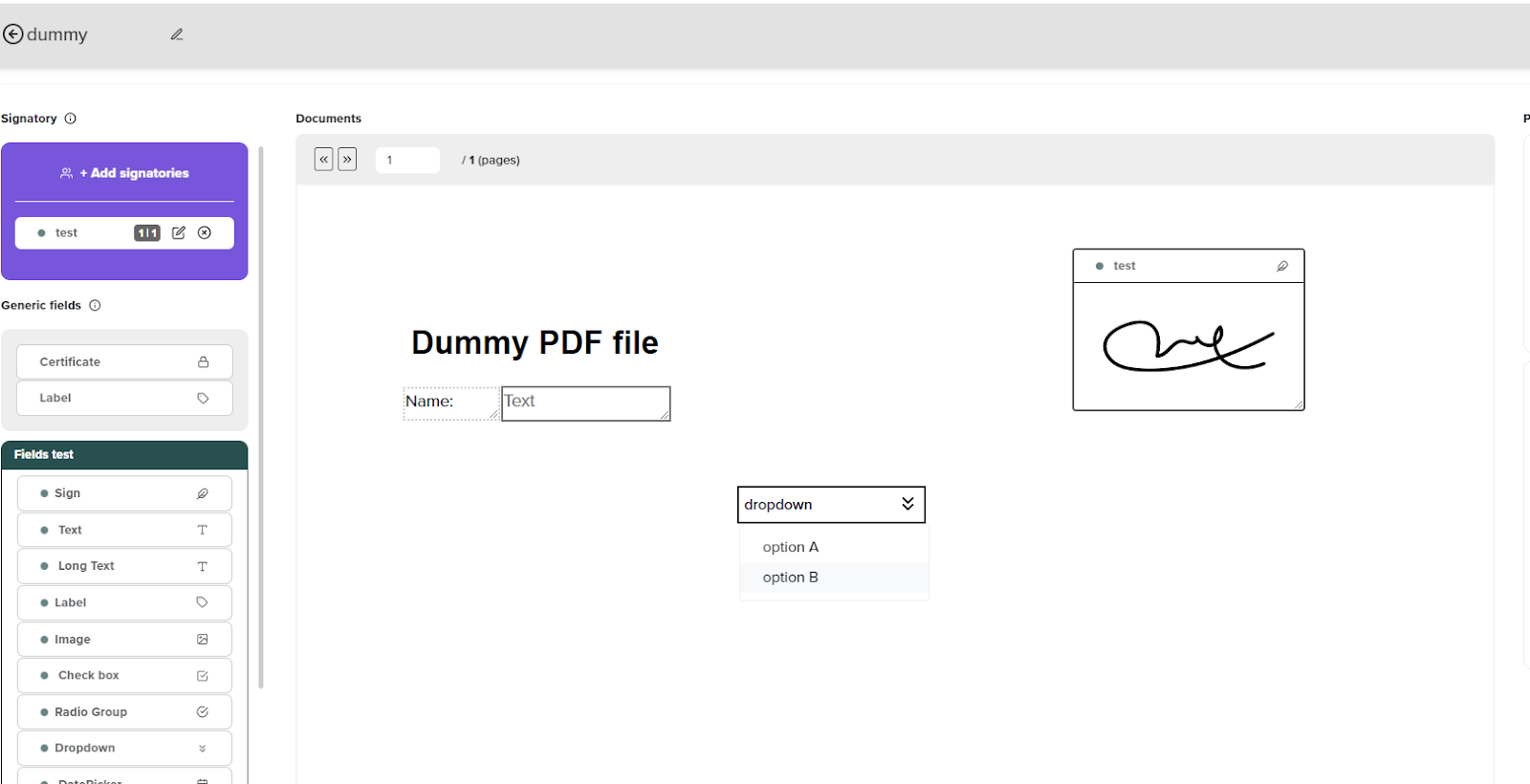
Defining formElements manually via the API can be complex due to the precise positioning and structure required. For this reason, the recommended approach is to preconfigure a template or layout using the Tecalis Signature Admin Panel, including all desired form fields. These can then be reused when defining the formElements array for the recipient(s).
Once a template or layout is created, the get template/layout info method can be used to retrieve its associated formElements. These elements may be reused with minimal adjustments — typically, only the "page" attribute must be updated to indicate where each element should appear, since the "position" values are already correctly defined in the template.
Note: If the same form element needs to be reused multiple times within the same operation, it is strongly recommended to regenerate a unique "uuid" for each instance to avoid unexpected behavior during the signing process.
There are two ways to define formElements in an operation:
By reference – Provide a template_id or layout_id to import the form elements directly from an existing template. This is ideal when no modifications are required.
{
    "formElements": [
        {
            "template_id": "631f060a0c85c750720462c2"
        }
    ]
}
Manually – Include the full JSON structure of the formElements when custom changes are needed (e.g. modifying the "page", "uuid", or other attributes).
{
    "formElements": [
        {
            "uuid": "c674a18e-e833-457b-8cfd-e448f1a1add2",
            "type": "signature",
            "name": "signature",
            "page": 1,
            "x": 104,
            "y": -185,
            "w": 203,
            "h": 149,
            "oldW": 200,
            "oldH": 100,
            "label": "",
            "dragCache": {
                "x": 104,
                "y": 185
            },
            "value": null,
            "required": false,
            "disabled": false,
            "visible": true,
            "percentages": {
                "x": 0.08573784006595218,
                "y": -0.1077744466615623,
                "w": 0.16735366859027206,
                "h": 0.08680212190579882
            },
            "pdfDisplayerDocumentWidth": 1213,
            "pdfDisplayerDocumentHeight": 1716.5478991596638
        },
        {
            "uuid": "dde72edc-6f4b-430d-a8fa-fee7515a6108",
            "type": "textbox",
            "name": "textbox",
            "page": 1,
            "x": 104,
            "y": -341,
            "w": 202,
            "h": 39,
            "oldW": 180,
            "oldH": 38,
            "label": "",
            "dragCache": {
                "x": 104,
                "y": 341
            },
            "value": null,
            "required": false,
            "disabled": false,
            "visible": true,
            "percentages": {
                "x": 0.08573784006595218,
                "y": -0.19865452060320402,
                "w": 0.1665292662819456,
                "h": 0.022720018485410432
            },
            "pdfDisplayerDocumentWidth": 1213,
            "pdfDisplayerDocumentHeight": 1716.5478991596638
        }
    ]
}
Both methods can be combined in a single request. Additionally, it is possible to provide multiple template_id values to compose a more complex form structure.
{
    "formElements": [
        {
            "template_id": "631f060a0c85c750720462c2"
        },
        //{
        //    "layout_id": "631f05d0e6830e72c16f23e2"
        //},
        {
            "uuid": "dde72edc-6f4b-430d-a8fa-fee7515a6108",
            "type": "textbox",
            "name": "textbox",
            "page": 1,
            "x": 104,
            "y": -341,
            "w": 202,
            "h": 39,
            "oldW": 180,
            "oldH": 38,
            "label": "",
            "dragCache": {
                "x": 104,
                "y": 341
            },
            "value": null,
            "required": false,
            "disabled": false,
            "visible": true,
            "percentages": {
                "x": 0.08573784006595218,
                "y": -0.19865452060320402,
                "w": 0.1665292662819456,
                "h": 0.022720018485410432
            },
            "pdfDisplayerDocumentWidth": 1213,
            "pdfDisplayerDocumentHeight": 1716.5478991596638
        }
    ]
}
Modifying Form Elements
It is possible to modify the properties of the form fields placed within a document. The most common modifications typically involve changing the page where the field is displayed or updating its assigned value. These modifications can be performed either dynamically or statically, with each approach offering specific advantages and disadvantages.
The only difference between both approaches lies in how the form elements are obtained — the final structure and submission process are the same.
Retrieving Form Elements
Dynamically
Form elements can be retrieved in real time by calling the endpoint pdf/template/:id/info or pdf/layout/:id/info, depending on whether the source is a template or a layout.
Pros:
- The most up-to-date version of the form elements is always retrieved.
- No need to maintain or version external copies of the configuration.
Cons:
- Requires an additional API call, which may increase response time.
- If multiple users have access to the Tecalis Signature Admin Panel, fields may be modified unexpectedly, leading to inconsistencies if not properly controlled.
Statically
Form elements are retrieved once using the same endpoints (pdf/template/:id/info or pdf/layout/:id/info) and stored locally in a static JSON file for later use.
Pros:
- Prevents unexpected changes due to admin panel updates by other users.
- Ideal for scenarios where field consistency is critical.
Cons:
- Stored form elements may become outdated if changes are made in the admin panel.
- Requires manual management to keep the static data in sync with template updates.
Editing Form Elements
To modify a field, its uuid must be known. Alternatively, the name attribute can be used, but only if it is guaranteed to be unique across the form elements to avoid unexpected behavior.
Once the target field is identified (using uuid or name), its properties can be updated — commonly the page or value attributes.
Submitting Modified Fields
After the required modifications are applied, the resulting JSON object should be submitted via the formElements parameter within the relevant API request, template or layout over the PDF of another template
Template/Layout over template
It is possible to apply the form elements defined in one template or layout (Template A) to the PDF file of a different template (Template B).
This approach provides greater flexibility, allowing the combination of predefined field configurations with different document contents. When doing so, it is important to ensure that the positioning and pagination of the fields are compatible with the target PDF.
{
    "files": [
        {
            "receivers": [
                {
                    "email": "[email protected]",
                    "formElements": [
                        {
                            "template_id": "631f060a0c85c750720462c2"
                        }
                    ]
                }
            ],
            "configure": {},
            "name": "Template test",
            "template_id": "631f05d0e6830e72c16f23e2"
        }
    ]
}
KYC in receivers
| Parameter | Type | Required | Default | Allowed values / Format | Description |
|---|---|---|---|---|---|
| mode | string | No | none | none, auto, manual, files | Defines the type of identity verification: auto (real-time validation), manual (photo taken, no validation), files (only request additional documents), or none (no KYC). |
| with_selfie | boolean | No | false | true, false | If set to true, a facial image is also requested. In auto mode this means a proof-of-life and a match, while in manual mode it's a static photo only. |
| additional_documents | array of objects | No | List of additional documents to collect after KYC. | ||
| ├─ extensions | string / string[] | No | all | pdf or ["pdf", "png"] | File types allowed for the upload (omit the dots). all allows any type. |
| ├─ capture_mode | string | No | photo_upload | photo, upload, photo_upload | Defines how the document can be provided (e.g., via camera, file upload, or both). |
| ├─ copies | number | No | 1 | Any positive integer | Number of documents/images expected for each entry. |
Example
{
    "kyc": {
        "mode": "auto",
        "with_selfie": true,
        "additional_documents": [
            {
                "name": "Insurance first two pages",
                "subtext": "Send first and second page of your insurance contract",
                "required": true,
                "copies": 2,
                "extensions": "all",
                "capture_mode": "photo_upload",
                "instructions": "Take  photos or upload  scanned images of the first and second page of your insurance contract"
            }
        ]
    }
}Updated 6 months ago